

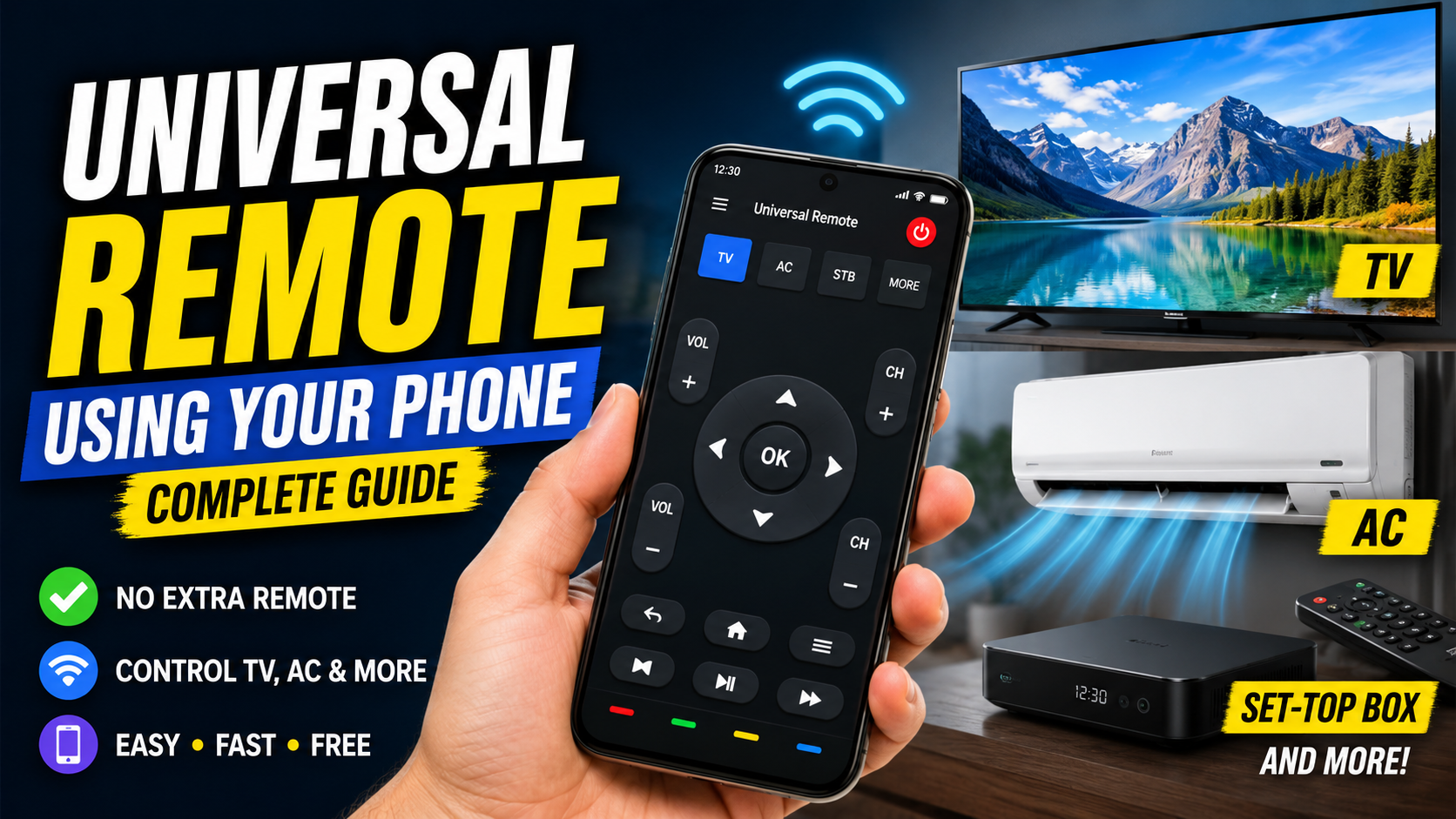
Using a smartphone universal remote can simplify the functioning of any gadget. Your phone will work for many compatible devices and you don’t need to have multiple remotes on your table. Depending on your smartphone and the device you want to control, you may be able to connect using an infrared sensor, Wi-Fi, Bluetooth, or a dedicated smart-home platform.
Thank you for reading this post, don't forget to subscribe!What Is a Universal Remote on a Phone?
A universal remote app turns your smartphone into a remote-control interface. The app provides buttons and controls similar to a traditional remote, allowing you to perform common functions such as switching devices on or off, changing channels, adjusting volume, selecting inputs, and controlling playback.
However, not every phone can directly control every device. The technology used by your phone and the device must be compatible. Some smartphones include an infrared, or IR, blaster that can send remote-control signals directly to compatible electronics. Other phones depend on Wi-Fi or Bluetooth connections.
How Does a Phone Universal Remote Work?
There are several technologies that allow a smartphone to function as a remote. The most traditional method is infrared. An IR blaster sends invisible infrared signals that are interpreted by compatible electronic devices. This works similarly to the signal sent by a normal TV remote.
Wi-Fi is another popular option. Smart TVs, streaming devices, and some home appliances can connect to the same Wi-Fi network as your smartphone. A compatible app can then communicate with the device over the network.
Check Whether Your Phone Has an IR Blaster
Before installing an infrared universal remote app, check whether your smartphone has an IR blaster. An IR blaster is a small hardware component that allows the phone to transmit infrared signals.
Not all modern smartphones include this feature. Some Android phones have offered IR functionality, while many other models do not. The easiest way to check is to look at your phone’s official specifications or user manual.
Using Your Phone to Control a Smart TV
Smart TVs are among the easiest devices to control with a smartphone. Many manufacturers provide official mobile applications that allow users to operate their televisions from their phones.
First, connect your smartphone and smart TV to the same Wi-Fi network. Install the official remote application associated with your TV brand. Open the application and follow the pairing instructions.
Using Your Phone as an AC Remote
Air conditioners are another device that can potentially be controlled from a smartphone. However, the method depends heavily on the AC model.
If your smartphone has an IR blaster, an infrared remote application may allow it to control a compatible air conditioner. The app may ask you to select the AC manufacturer and test different remote-control codes.
Controlling a Set-Top Box with Your Phone
Many households still use satellite or cable set-top boxes. Some can be controlled through smartphone applications, although compatibility varies by provider and device.
If the set-top box supports network control, an official application may allow your phone to act as a remote. You may be able to change channels, browse menus, search for programs, and control playback.
Using Your Phone for Streaming Devices
Streaming devices such as media players and smart TV accessories can often be controlled from smartphones. Many popular streaming platforms provide official remote functionality through their mobile applications.
Usually, your phone and streaming device need to be connected to the same Wi-Fi network. After opening the relevant application, you can select the streaming device and complete the pairing process.
Choosing a Universal Remote App
There are many universal remote applications available for smartphones. However, you should choose an application based on the technology supported by your phone and your target device.
If your phone has an IR blaster, look for a reputable remote application that supports your TV, AC, set-top box, or other electronics. If you have a smart TV, using the manufacturer’s official application is often preferable because it is designed specifically for that television.
How to Set Up a Universal Remote App
Setting up a phone-based universal remote is usually straightforward. Start by installing a compatible application from a trusted app store. Open the application and select the type of device you want to control.
Next, choose the brand of your device. Some applications automatically detect compatible devices, while others require you to select a model or test different remote-control codes.
Benefits of Using Your Phone as a Universal Remote
One of the biggest advantages is convenience. Most people carry their smartphones with them throughout the day, so having a remote built into the phone means there is one less device to search for.
A smartphone can also replace several physical remotes. Instead of keeping separate remotes for your TV, set-top box, sound system, and other compatible devices, you can manage supported devices from one application.
Limitations You Should Know
Although smartphone universal remotes are useful, they are not guaranteed to work with every device. The biggest limitation is hardware compatibility.
A phone without an IR blaster cannot normally send infrared commands directly to a traditional non-smart TV or AC. In such cases, you may need a separate smart IR hub or another compatible device.
Safety and Privacy Considerations
When installing a remote-control application, download it from a trusted app store whenever possible. Check the developer information, ratings, reviews, and requested permissions.
A basic remote application generally does not need access to unrelated personal information. If an application requests permissions that appear unnecessary for its purpose, consider choosing another application.
What If Your Phone Does Not Have an IR Blaster?
If your smartphone does not have an IR blaster, you still have several options. For smart TVs and Wi-Fi-enabled devices, you can normally use an official smartphone application.
Another option is a smart IR hub. This is a small device that connects to your home Wi-Fi network and sends infrared commands to traditional electronics. Your phone communicates with the hub, and the hub communicates with the TV, AC, or other IR-controlled device.
Tips for Better Remote-Control Performance
For infrared remote control, point the phone toward the device just as you would point a traditional remote. Make sure there is a clear path between the IR transmitter and the device’s receiver.
For Wi-Fi-based control, make sure both devices are connected to the same network when required. Restarting the app, phone, or smart device can sometimes solve connection problems.
Can One Phone Control Multiple Devices?
Yes, a compatible smartphone can potentially control multiple devices through separate remote profiles or applications. For example, you might have one profile for your television, another for your air conditioner, and another for your set-top box.
The exact number of devices depends on the application and the communication technology being used. Some apps allow users to save many devices and switch between them easily.
Download App
Final Thoughts
Refusing to use a universal remote can make almost every element of everyday device control a lot easier. Using infrared, Wi-Fi, Bluetooth or a smart-home hub, you can control your TV, air conditioner, set-top box, streaming device, speaker and more, depending on your smartphone and electronic devices.
The first step is to determine the type of technology your phone is compatible with. In some cases it may be possible to directly control traditional infrared devices if it has an IR blaster. Otherwise, there can be alternatives in the form of smart devices with Wi-Fi functionality and external IR hubs.