
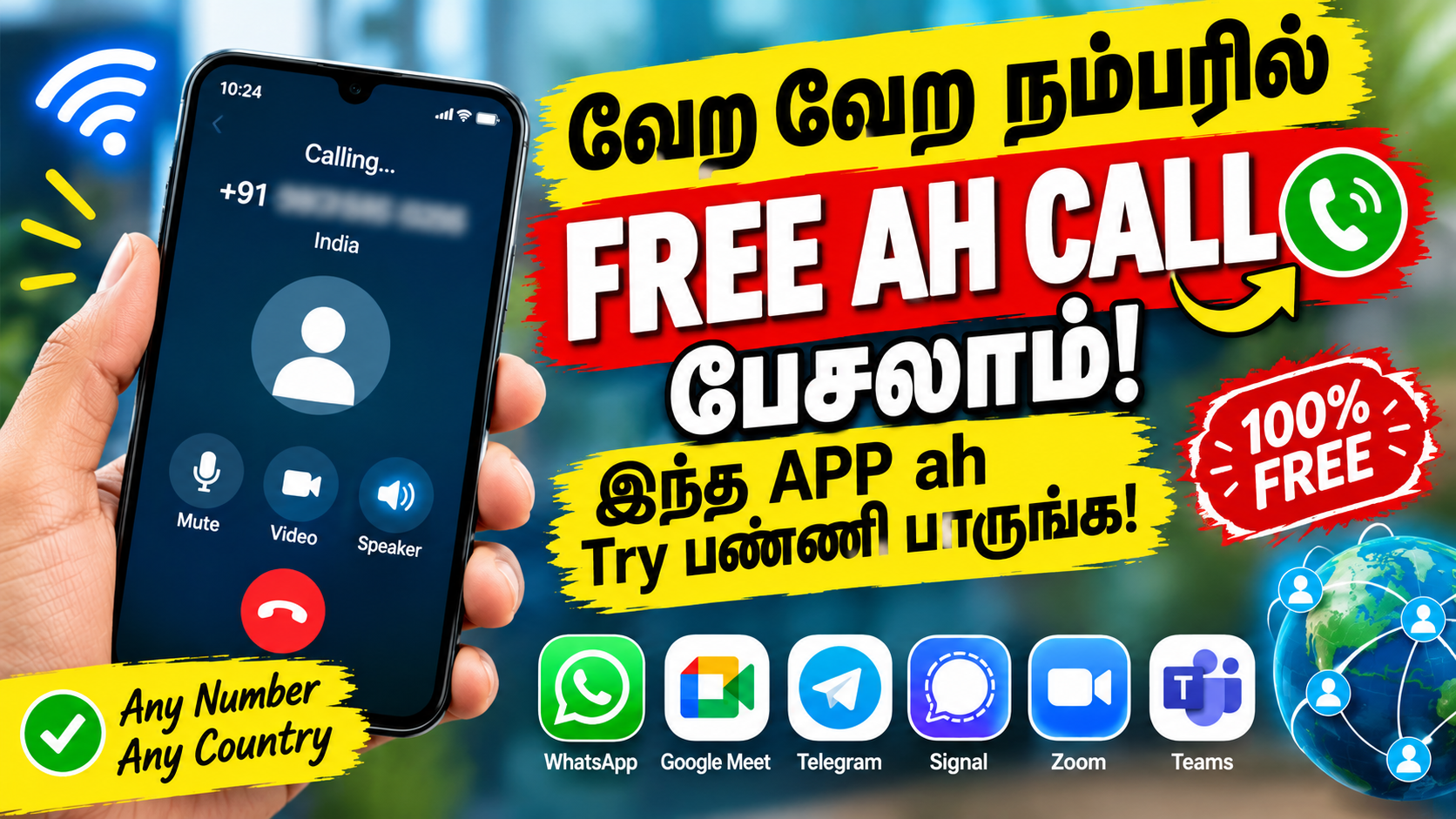
Free internet calling has become one of the easiest ways to communicate with friends, family members, colleagues, and customers around the world. Instead of depending only on traditional mobile networks, you can use internet-based calling applications to make voice calls and video calls using a smartphone, tablet, laptop, or desktop computer. In 2026, many popular apps provide free calling features, messaging, group conversations, and video meetings. These services are useful for personal communication, online education, remote work, and business discussions. All you generally need is a compatible device, a suitable calling application, and a stable Wi-Fi or mobile data connection. However, some services require both people to use the same app, and free plans may have certain limitations. This complete online call guide explains how to make free internet calls, which apps to consider, and how to enjoy safer and clearer conversations.
Thank you for reading this post, don't forget to subscribe!What Is an Internet Call?
An internet call is a voice or video conversation transmitted through an internet connection instead of relying entirely on a traditional telephone network. Voice-over-Internet-Protocol technology, commonly called VoIP, allows audio communication to travel through internet-connected devices. Video calling adds live video so participants can see each other while talking. Popular applications such as WhatsApp, Google Meet, Telegram, Signal, Zoom, and Microsoft Teams offer different types of internet-based communication.
Internet calls can help reduce communication costs, especially when calling people in other cities or countries through an app. However, free internet calling does not always mean completely cost-free usage. Mobile data charges may apply, and calling ordinary telephone numbers may require payment or a special subscription. Understanding these differences can help you choose the right service.
Best Apps for Making Free Internet Calls
| App | Best Use | Main Features |
|---|---|---|
| Friends and family | Voice calls, video calls, messaging | |
| Google Meet | Online meetings | Video meetings, screen sharing |
| Signal | Privacy-focused communication | Encrypted calls and messages |
| Telegram | Groups and communities | Messaging, voice and video calls |
| Zoom | Meetings and online classes | Video conferencing, screen sharing |
| Microsoft Teams | Work and education | Meetings, chat, collaboration |
| FaceTime | Apple devices | Voice calls, video calls |
| Discord | Gaming and communities | Voice channels, video, screen sharing |
The availability of individual features depends on the application version, device, region, and account type. Before choosing an app, check whether the people you want to contact can use it and whether its free features meet your requirements.
How to Make Free Internet Calls on Your Mobile Phone
Making an internet call is straightforward, even for beginners. First, connect your phone to a reliable Wi-Fi network or enable mobile data. Next, open the official app store on your device and install a trusted calling application. WhatsApp is a convenient choice for everyday communication if your contacts already use it. Complete the registration process and provide any permissions required for calling. Open a conversation with the person you want to contact, then tap the voice-call icon to start an audio conversation or the video-call icon to begin a video call. Wait for the other person to answer and make sure your microphone and camera work correctly. When the conversation ends, tap the end-call button. Remember that both participants usually need compatible access to the same service for app-to-app calling.
How to Make Free Internet Calls on a Computer
You can also make free internet calls using a laptop or desktop computer. Start by connecting your computer to the internet and opening the official website or desktop application of your chosen service. Sign in or create an account if required. For a meeting service such as Google Meet or Zoom, you may be able to join a conversation through an invitation link. Allow microphone and camera access when your browser or application requests permission. Select the correct microphone, speakers, and camera from the available settings. Before starting an important meeting, test your audio and video. Using headphones can help reduce background noise and prevent audio feedback. Always verify meeting links before joining, especially when they arrive from unfamiliar people.
Step-by-Step Guide to Making a Free Video Call
Step 1: Choose a calling app. Select a trusted application that supports video calls and works on your device.
Step 2: Check your internet connection. Connect to reliable Wi-Fi or mobile data to reduce interruptions.
Step 3: Open the contact or meeting link. Select the person you want to call or join a scheduled meeting.
Step 4: Enable your camera and microphone. Allow the necessary permissions and check that your devices are working.
Step 5: Start the video call. Tap the video-call icon or select the option to join the meeting.
Step 6: Adjust your settings. Mute your microphone when needed, change the camera view, or use headphones for clearer sound.
Step 7: End the call safely. Leave the meeting or tap the end-call button when you finish.
Following these simple steps can make online conversations easier and more comfortable.
Benefits of Free Internet Calling
Free internet calling provides several advantages for personal and professional communication. One major benefit is convenience because you can contact people from different locations without relying solely on traditional phone calls. Video calls allow family members and friends to see each other even when they live far apart. Students can attend online classes, ask questions, and participate in group discussions. Employees can conduct remote meetings, share screens, and collaborate on projects. Small businesses can communicate with customers and coordinate with team members through messaging and calling apps. Many services also support group calls, file sharing, and meeting invitations. Nevertheless, the quality of the experience depends on internet speed, device performance, application features, and the limitations of the chosen service.
Tips for Better Internet Call Quality
A stable internet connection is essential for clear voice and video calls. Whenever possible, use a reliable Wi-Fi connection and move closer to your router if the signal is weak. Close applications that consume unnecessary bandwidth, especially when video calls repeatedly freeze. If your video becomes unclear, switching off the camera temporarily may help reduce data usage. Use headphones to improve audio quality and minimize echo. Keep your calling application updated and restart it if you experience technical problems. For important meetings, test the microphone, camera, and speakers before the scheduled time. If mobile data is limited, remember that video calls generally use more data than audio-only calls. Choosing an audio call when video is unnecessary can help conserve your data allowance.
Is It Safe to Make Free Internet Calls?
Internet calling can be safe when you use reputable services and follow basic security practices. Download applications only from official app stores or the developer’s official website. Review the application’s privacy settings and grant only the permissions needed for its features. Never share your passwords, bank details, or one-time passwords with unknown callers. Be cautious when opening links sent by strangers or joining meetings from suspicious invitations. Use available security features such as two-step verification, meeting passcodes, and waiting rooms. End calls and block unwanted contacts when necessary. Some services provide end-to-end encryption for particular calls or conversations, while others use different security arrangements. Check the privacy information for your chosen service, and remember that encryption cannot prevent a participant from recording or sharing a conversation.
Common Problems and Their Solutions
Internet calls may sometimes fail because of weak connectivity, incorrect permissions, outdated applications, or device problems. If you cannot hear the other person, check the volume and confirm that the correct microphone and speakers are selected. If the other person cannot hear you, check microphone permissions and make sure your microphone is not muted. If video is not working, confirm that the application has camera access and that another application is not using the camera. If a call keeps disconnecting, switch to a more stable network or restart your router. Updating the application can also resolve certain technical issues. When a service is unavailable, try another trusted calling platform that supports your device and communication needs.
Conclusion
Free internet calling is a practical way to stay connected with people around the world in 2026. With applications such as WhatsApp, Google Meet, Signal, Telegram, Zoom, and Microsoft Teams, users can make voice calls, video calls, and online meetings from mobile phones or computers. Choose an app based on your needs, check the free-plan limitations, and ensure that your internet connection is reliable. Protect your personal information, keep applications updated, and use trusted services for everyday communication. By following this online call guide, beginners can start making internet calls confidently and enjoy convenient communication with friends, family, students, and colleagues.
Frequently Asked Questions (FAQs)
1. Can I make free calls using the internet?
Yes. Many apps support free app-to-app voice and video calls over Wi-Fi or mobile data. Data charges may apply depending on your internet plan.
2. Which app is best for free internet calls?
WhatsApp is a convenient option for everyday conversations. Google Meet and Zoom are useful for meetings, while Signal is worth considering if privacy is a priority.
3. Can I make internet calls without a SIM card?
You may be able to use calling apps over Wi-Fi without an active SIM card, provided your device, account setup, and the chosen service support it.
4. Can I call an ordinary mobile number for free?
Not always. Many apps provide free calls only between users of the same service. Calls to ordinary mobile or landline numbers may require payment.
5. Do internet calls use mobile data?
Yes, when you use mobile data. Voice calls generally use less data than video calls, although actual usage varies by app, call quality, and duration.