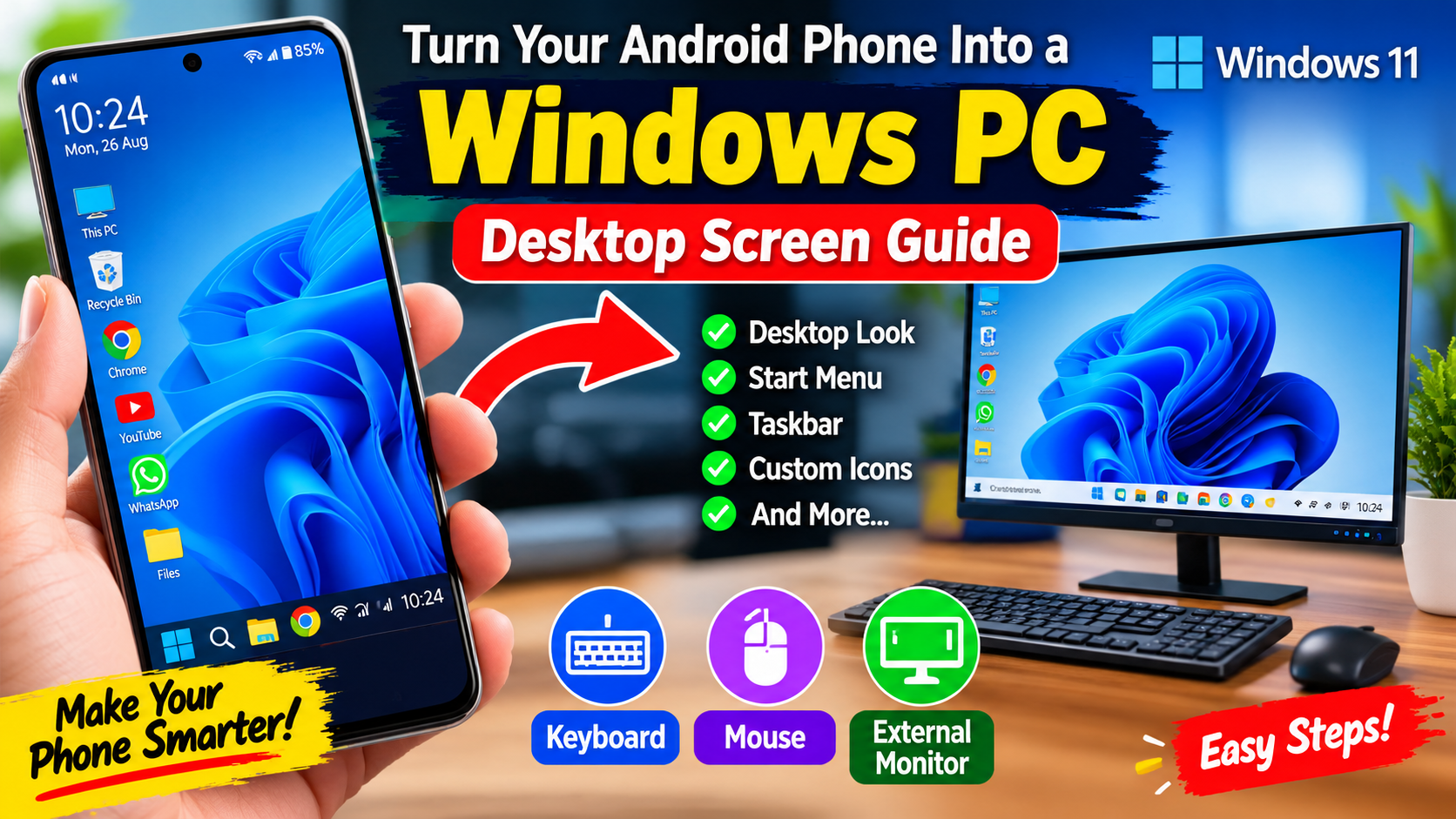
Smartphones have become much more powerful than they were a few years ago. Today, many Android phones can handle multitasking, document editing, web browsing, entertainment, gaming, and other tasks that were traditionally performed on a computer. With the right launcher, desktop-style interface, accessories, and settings, you can make your Android phone look and feel more like a Windows PC.
Thank you for reading this post, don't forget to subscribe!What Does a Windows-Style Phone Screen Mean?
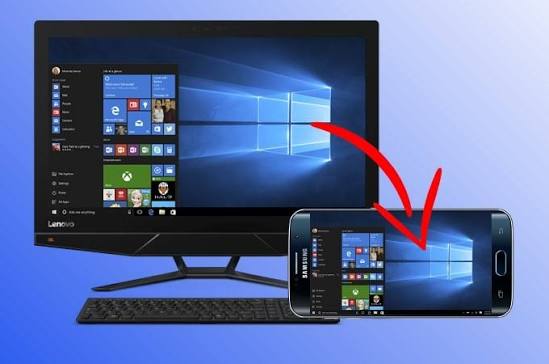
Turning an Android phone into a Windows PC does not usually mean installing the actual Windows operating system on the phone. Instead, you can customize the Android interface to provide a desktop-style experience. A Windows-inspired launcher can add features such as a Start menu, taskbar, desktop icons, folders, widgets, and a familiar computer-style layout.
Why Turn Your Android Phone Into a PC?
There are several reasons why users may want a Windows-style Android setup. The first is convenience. Your smartphone is usually with you all the time, so having a desktop-like interface can make certain tasks easier.
A computer-style interface can also be useful when working with documents, browsing websites, managing files, or using productivity applications. Some Android phones support external displays, keyboards, and mice, which can make the experience even closer to using a computer
Choose a Windows-Style Launcher
The easiest way to change the appearance of your Android phone is to install a desktop-style launcher. Launchers control the appearance and organization of your home screen, app icons, menus, and other interface elements.
Look for a reputable launcher that provides a Windows-inspired design. Depending on the launcher, you may find a Start menu, taskbar, desktop icons, file shortcuts, search features, and customizable themes.
Customize the Desktop
After choosing a suitable launcher, customization is the next step. You can arrange frequently used applications on the desktop just as you would arrange shortcuts on a computer.
Choose a clean wallpaper that resembles a Windows-style desktop. You can also add shortcuts for your browser, file manager, documents, music, video, and other frequently used applications.
Many launchers allow you to adjust icon size, spacing, fonts, taskbar position, and menu appearance. Experiment with these settings until the interface feels comfortable.
For a professional desktop appearance, avoid placing too many icons on the screen. Keep only the most important shortcuts visible and organize other applications into folders or the app menu.
Add a Windows-Style Taskbar
A taskbar can make the Android interface feel much more like a computer. Depending on the launcher, you may be able to place a taskbar at the bottom of the display.
A typical desktop-style taskbar can provide access to the app menu, pinned applications, notifications, battery information, network status, and other shortcuts. Some launchers also provide a search button similar to the search functionality found on desktop operating systems.
If your launcher supports taskbar customization, adjust its size and position according to your screen. A smaller taskbar may be better for phones because it leaves more space for applications.
Connect a Keyboard and Mouse
For an even stronger PC-like experience, you can connect a Bluetooth keyboard and mouse to your Android phone. Many modern Android devices support Bluetooth accessories without requiring complicated setup.
Open your phone’s Bluetooth settings and pair the keyboard and mouse. Once connected, you can use a physical keyboard for typing and a mouse or touchpad for navigation.
This setup can be particularly useful for writing emails, editing documents, browsing websites, and performing other tasks that require frequent typing. A keyboard and mouse can also make a large-screen Android setup feel considerably more like a desktop computer.
Use an External Monitor
Some Android phones support connecting to an external display. Depending on the phone model, this may be possible through USB-C, a compatible adapter, wireless display technology, or a manufacturer’s desktop-mode feature.
When supported, an external monitor can provide a much larger workspace than the phone’s built-in screen. You can then use a keyboard and mouse to create a more traditional desktop setup.
However, display output and desktop modes vary between Android manufacturers and phone models. Check your device’s official specifications before purchasing adapters or cables.
Organize Android Apps Like a Computer
A Windows-style appearance becomes more useful when your applications are organized properly. Create folders for categories such as Office, Social Media, Entertainment, Photography, Tools, and Games.
Keep productivity applications easily accessible. A browser, file manager, notes application, document editor, calculator, and email application can be placed on the desktop or taskbar.
You can also use Android widgets for weather, calendar events, reminders, battery information, and other useful information. Avoid adding too many widgets because they can make the desktop look crowded.
Improve the PC-Like Experience
Changing the launcher is only one part of creating a desktop-style Android environment. You can also customize your wallpaper, icons, fonts, notification settings, and navigation.
Use a clean wallpaper and consistent icon style. If your launcher supports a Start menu or app drawer, organize applications logically. Disable unnecessary animations if you want a faster and more responsive interface.
You should also keep your Android operating system and applications updated. Updates can improve performance, compatibility, and security.
Can Android Completely Replace a Windows PC?
For basic tasks, an Android phone can replace a computer in some situations. Web browsing, messaging, video playback, social media, document editing, cloud storage, online learning, and many productivity tasks can be completed on a modern smartphone.
However, Android is still different from Windows. Some professional desktop applications may not have Android versions. Advanced video editing, specialized engineering software, certain development tools, and other professional programs may require a traditional computer.
Therefore, a Windows-style Android setup should be considered a convenient desktop-like experience rather than a complete replacement for every Windows PC.
Is It Safe to Use Windows-Style Launchers?
Generally, reputable launchers downloaded from official app stores are safer than modified applications obtained from unknown sources. Before installing any launcher, review the permissions it requests.
A launcher normally needs certain permissions to provide its features, but unusual or excessive permissions should be treated carefully. Avoid applications that request access to sensitive information without a clear reason.
Do not enter passwords or personal information into suspicious applications. Keeping Android updated and downloading applications from trusted sources can reduce security risks.
Benefits of a Windows-Style Android Desktop
A Windows-inspired Android interface offers several benefits. It can make the phone easier to navigate for users who are familiar with computers. It can provide a more organized home screen and improve access to frequently used applications.
The setup is also highly customizable. Users can change wallpapers, icons, menus, taskbars, and layouts without modifying the Android operating system itself.
Another benefit is portability. Instead of carrying a laptop for simple tasks, you can carry your smartphone and, when needed, connect it to a keyboard, mouse, or larger display.
Download App
Final Thoughts
Turning your Android phone into a Windows PC-style desktop is an interesting way to customize your smartphone. You do not necessarily need to install Windows itself. A reliable desktop-style launcher, a suitable wallpaper, organized applications, and optional keyboard and mouse accessories can create a familiar computer-inspired environment.
The experience will depend on your Android version, phone hardware, launcher, and available desktop features. Some devices can go further by supporting external displays and dedicated desktop modes, while others are better suited to a visual Windows-style launcher.